Log baby events with Apple Watch and widgets
The last feed at a glance. A nap timer on your wrist.
When a nap ends, you can stop the timer on your Apple Watch. When you want to check the last feed, a phone widget puts it on the screen. The watch app and widgets use your phone's baby records, and events you log there go into the same timeline.
Start on your phone
Install Vaava and finish the first setup on your phone, including your baby and caregiver details. Open the baby's timeline before trying the watch or widgets, and check the baby name shown there if you track more than one child.
You do not need a Vaava account to log from these screens. The no-account guide explains where your history lives and how to keep another copy.
Set up Vaava on Apple Watch
The watch app lets you log feeds and diaper changes, start or stop sleep, and keep ongoing timers in view. It works with Vaava on your paired iPhone.
- Open the Watch app on your iPhone and choose My Watch. If Vaava is under Available Apps, tap Install next to it. It may already have installed automatically.
- Open Vaava on the iPhone, then open Vaava on the watch. Check that the watch shows your baby's name.
- Choose feeding, sleep or diaper on the watch. Pick the details for a feed or diaper change; tap sleep to start a timer.
- For an ongoing feed or nap, use the timer's end button when it finishes. Check the entry in the phone timeline afterward.
Put Vaava on your watch face
A watch-face complication is a small display or control you can see without opening an app. Vaava has feeding, sleep and diaper complications for recent events and ongoing timers.
Touch and hold the watch face, tap Edit, and swipe to its complication settings. Pick a position and select a Vaava complication. The choices depend on the face and the space you select.
Apple has instructions for adding complications to a watch face if your face has a different layout.
Add a phone widget
Use a summary widget for today's event counts, or a last-event widget to check the latest feed, sleep or diaper change. Quick actions give you a way to start logging from the Home Screen.
- On iPhone, touch and hold an empty part of the Home Screen. Tap Edit, then Add Widget. Search for Vaava and choose a widget and size.
- Tap Add Widget, place it where you want it, then tap Done.
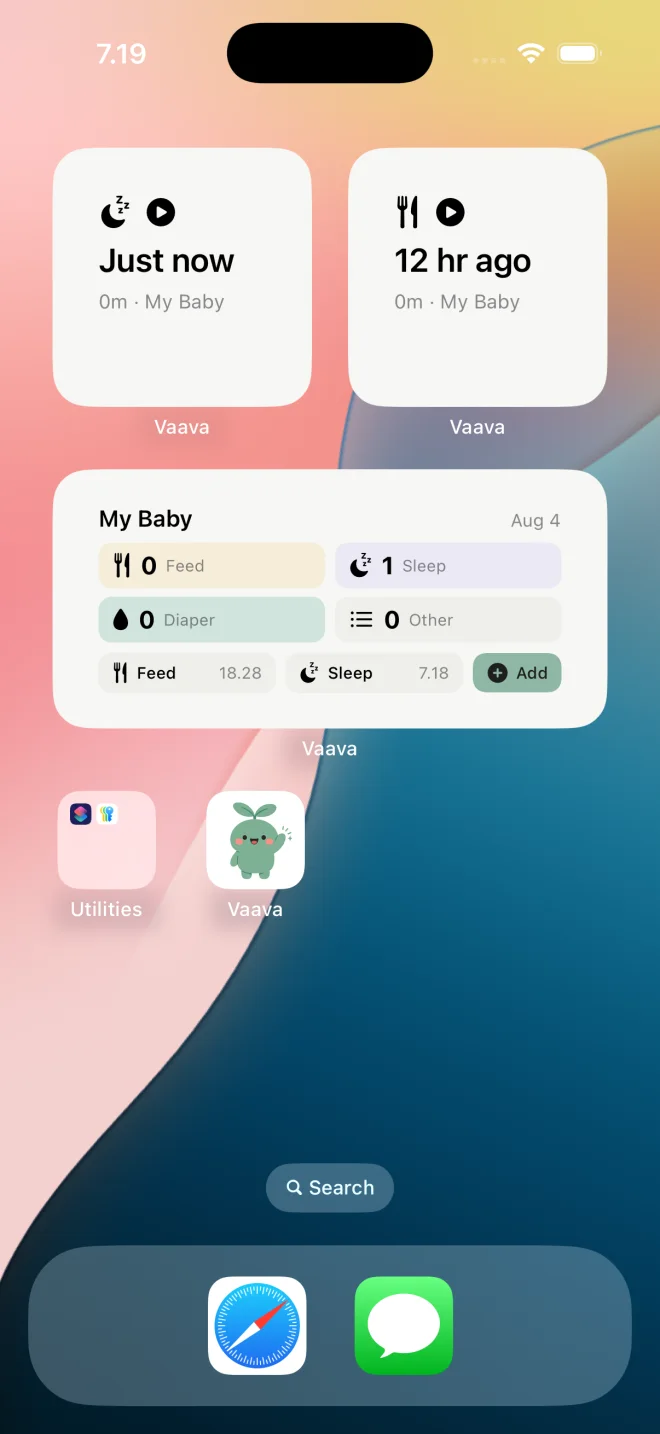
- On Android, touch and hold an empty part of the Home Screen, open Widgets, and find Vaava. Drag the widget to your Home Screen. The menus vary by phone and launcher.
Keep an iPhone timer on the Lock Screen
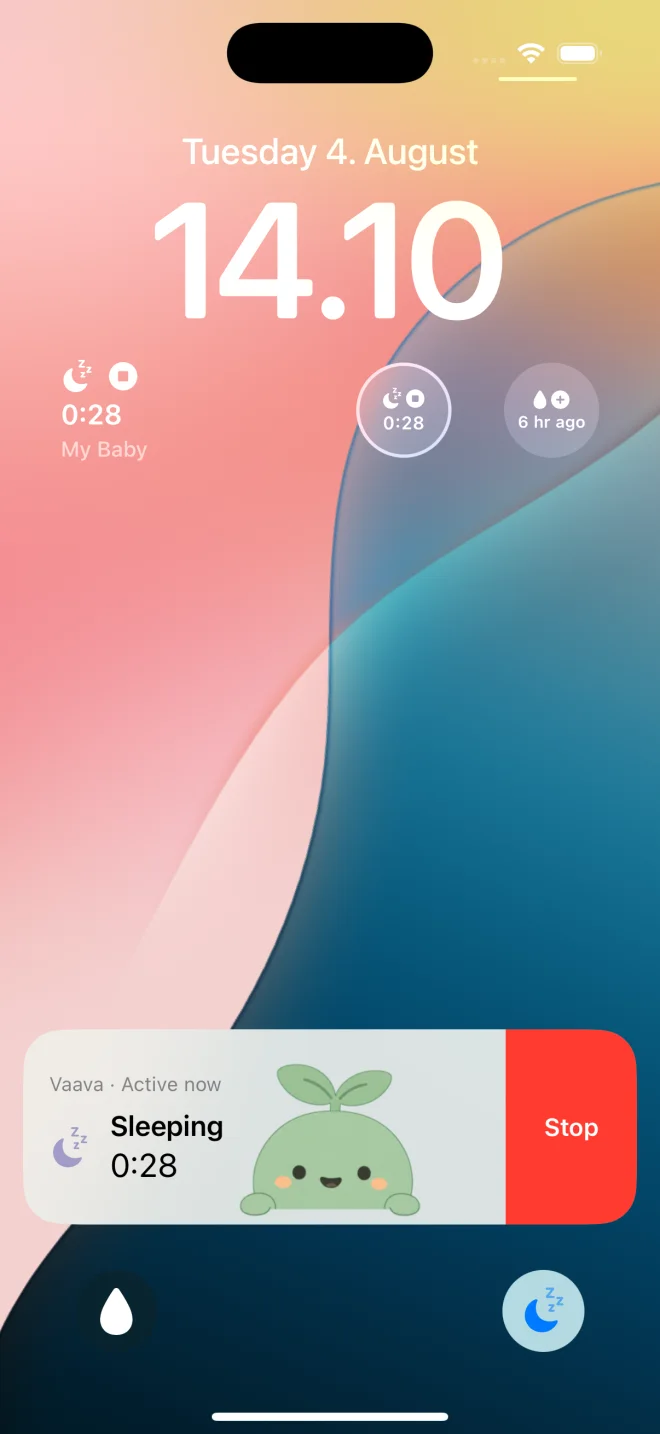
Lock Screen widgets show recent events. A Live Activity shows a feed or sleep timer while it is running. You do not need to add the Live Activity as a widget: start a timer in Vaava and it appears on the Lock Screen. On iPhones with Dynamic Island, the timer appears there too.
To add a Lock Screen widget, touch and hold the Lock Screen, tap Customize, then choose Lock Screen. Tap the widget area and select Vaava. Save the layout when you are done.
For a physical shortcut to start or stop sleep, follow the iPhone Action Button guide. It uses the same Vaava timers. Apple also explains how to add Home Screen and Lock Screen widgets.
- Start a feed or sleep timer, lock the phone, and check that the Live Activity shows the running timer. Use its stop control when the event ends.
Use Control Center or Android Quick Settings
On iPhone with iOS 18 or later, open Control Center, enter edit mode and tap Add a Control. Search for Vaava and add Feed Timer, Sleep Timer or Log Diaper. The timer controls start or stop the corresponding event.
On Android, open Quick Settings and use its edit option to add Vaava's feed, sleep or diaper tiles. Menu names and the edit button's position vary by phone. Feed and sleep tiles toggle timers; the diaper tile opens the diaper logging action.
What needs Plus, and what works offline
Logging feeds, sleep and diapers from the watch, checking widgets, and using timers do not need Plus. Dictating an event from the watch does. Open Dictate, enter your words, and review the events before saving. Keep Vaava reachable on the paired iPhone for dictation and confirmation.
If the iPhone is temporarily unreachable, ordinary watch events wait in a queue until it reconnects. Check that queued entries arrive in the phone timeline. Dictation needs the phone connection and AI processing, so it is not an offline logging option.
For a setup that keeps your history on your own devices, read what works offline. Optional AI features send the content you choose to a third-party AI provider, as described in the privacy policy. The no-subscription guide explains the free app and the one-time Plus purchase.
Share the timeline with another parent
Watch and widget logging adds to your phone timeline. To get those entries onto a partner's phone, use free local Wi-Fi sharing when both phones are on the same network.
For sharing when you are apart, set up Vaava Plus Family Data Sharing. It also keeps an encrypted copy you can restore with your recovery key. Pairing your Apple Watch to your iPhone is separate from inviting another caregiver.
If the watch or widgets do not show your records
Open Vaava on the phone first and check the baby and recent entries. Then reopen Vaava on the watch. If it shows queued events, reconnect it to the paired iPhone and check the timeline before logging the same event again.
If Vaava does not appear in the widget picker, open the phone app once and check for app and system updates. If an existing widget is stale, reopen Vaava; if needed, remove the widget and add it again. Watch faces and phone screens offer different widget sizes, so a choice available in one place may not appear in another.
If the watch app itself is missing, Apple explains how to install apps on a paired Apple Watch.
FAQ
Can I track baby feeds and sleep on Apple Watch?
Yes. Vaava on a paired Apple Watch lets you log feeds and diaper changes, start or stop sleep, and see ongoing timers. Open Vaava on the paired iPhone first so the watch has your baby's details.
Are Vaava's Apple Watch app and widgets free?
Basic watch logging, widgets and timers are free. Voice dictation needs Vaava Plus, an optional one-time purchase. You do not need a Vaava account for either.
Does Vaava have baby tracking widgets on Android?
Yes. Vaava has Home Screen widgets and Quick Settings tiles on Android. Apple Watch, iPhone Lock Screen widgets, Live Activity and Dynamic Island are Apple features.
Can I log on the watch when my iPhone is unreachable?
Ordinary watch events queue until the paired iPhone is reachable again. Check that they arrive in the phone timeline after reconnecting. Watch dictation needs a reachable iPhone and AI processing.
Will my partner see what I log from the watch?
Watch events go into your phone timeline. Sharing them with a partner needs free local Wi-Fi sharing on the same network, or optional Plus Family Data Sharing across networks. The watch connection alone does not share records with another caregiver.
Related guides
Ready to try it?