Log baby sleep with the iPhone Action Button
One press and the timer runs, hands still free.
It's nap o'clock, you have a baby on one arm, and the phone is on the kitchen counter. Press the Action Button on the side of your iPhone and Vaava starts the sleep timer. Press it again when the nap ends. Your hands stay full the whole time. Setup takes under a minute.
Before you start
Update Vaava to the latest version from the App Store. Toggle Sleep, Toggle Feed, and Log Diaper are App Shortcuts, so iOS only lists them after the app is installed. If the actions don't show up in the steps below, open Vaava once and check again.
One-press setup: Toggle Sleep
This is the whole setup. Once it's done, one press of the Action Button starts or stops the sleep timer, and the running timer shows up on your Lock Screen and in the Dynamic Island.
- Open Settings.
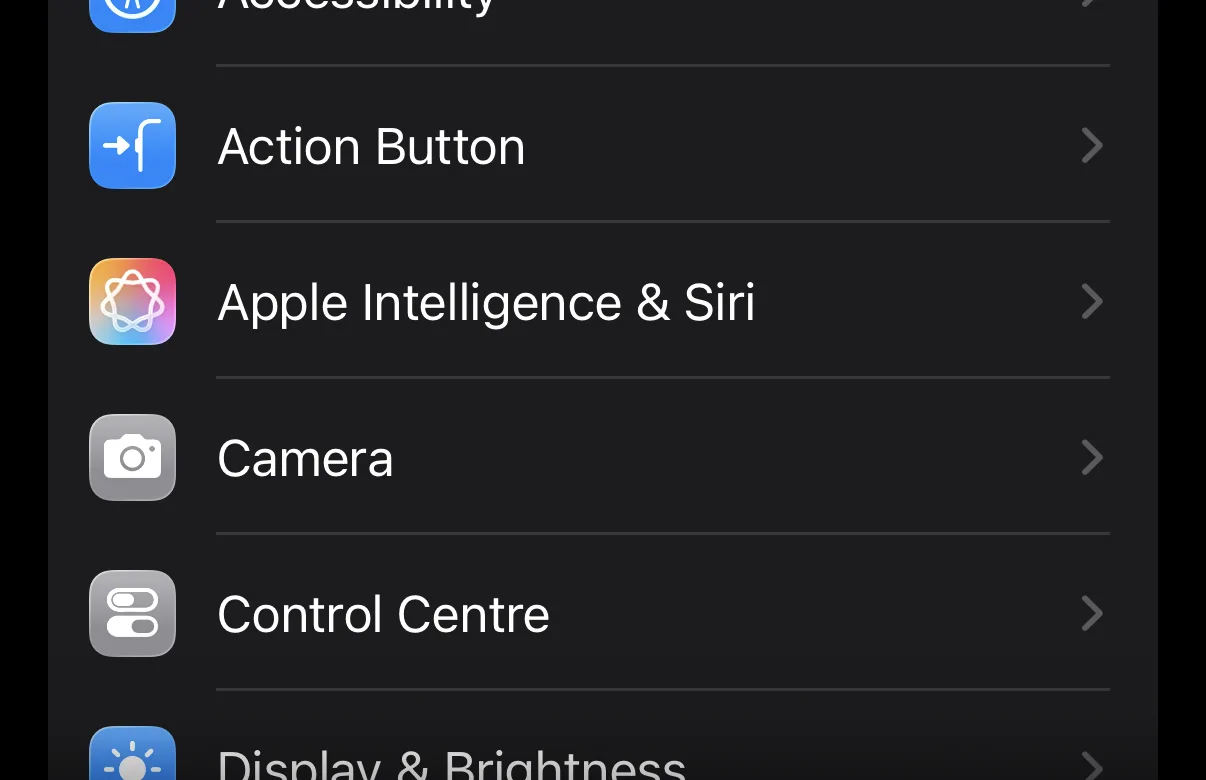
- Tap Action Button.
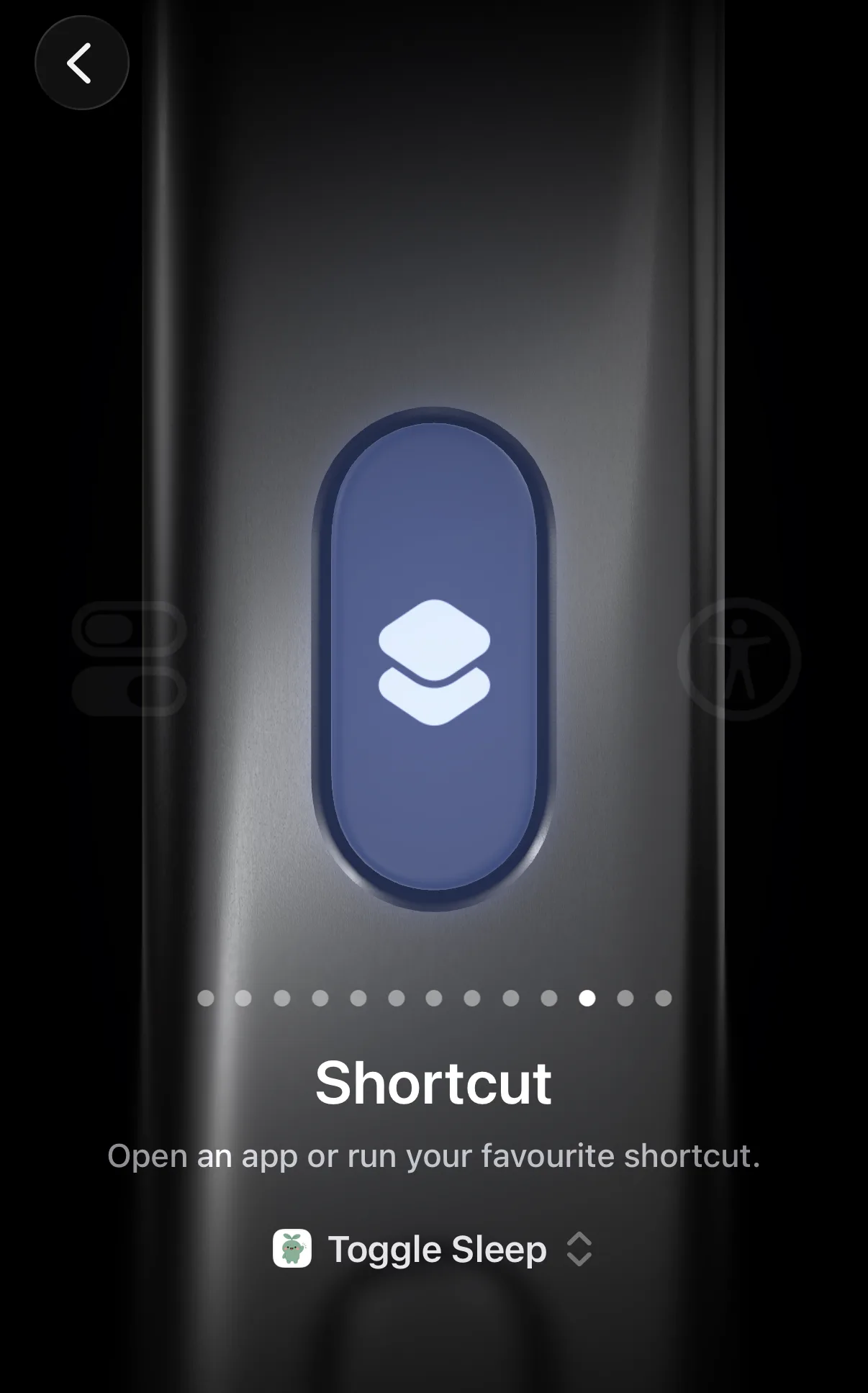
- Swipe through the options until you reach Shortcut.
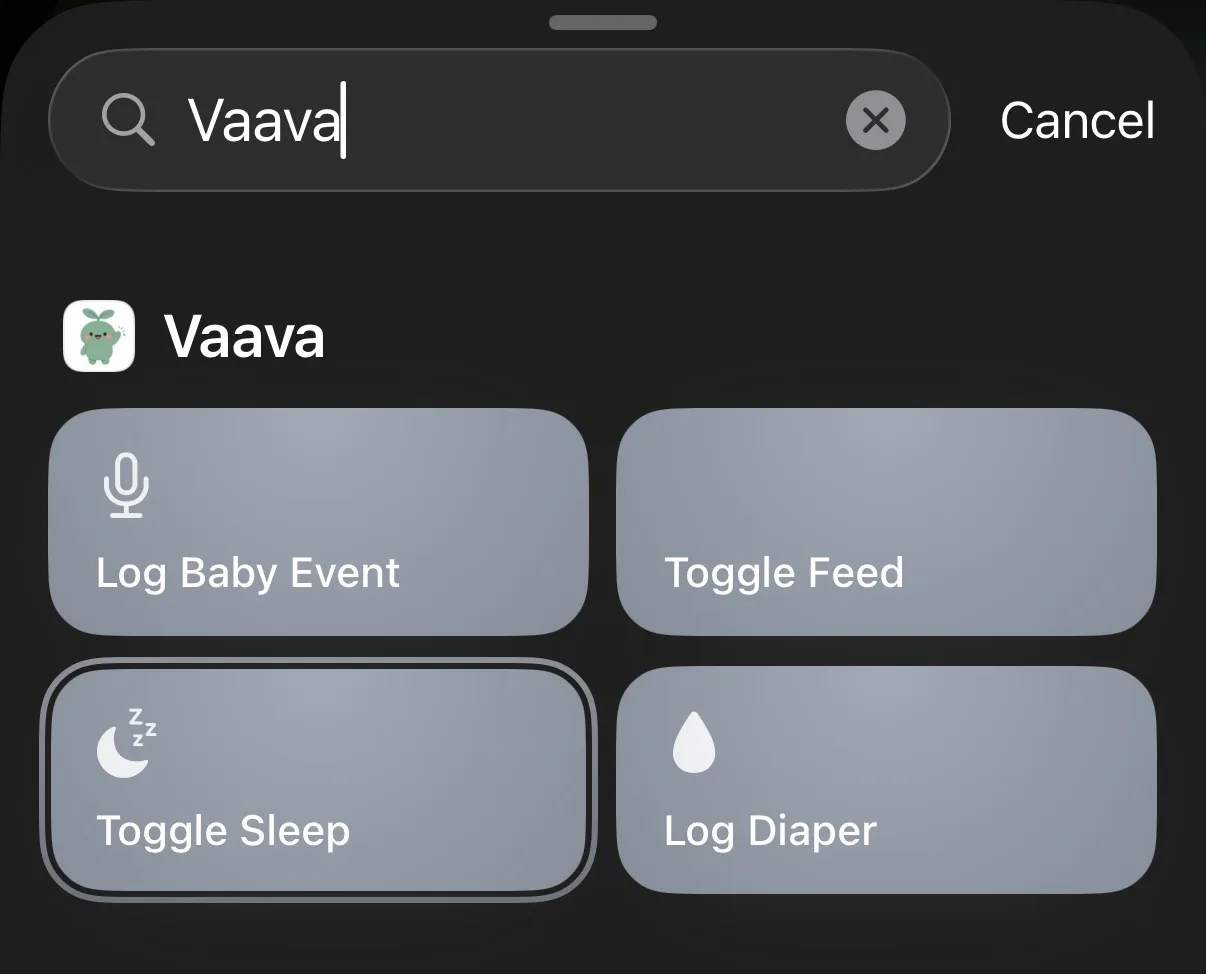
- Tap the shortcut picker and choose Toggle Sleep under Vaava.
- Exit Settings. Done.
One button for sleep, feed, and diaper (optional)
The Action Button holds a single assignment, but you can point it at a Shortcuts folder and pick the action each time you press. This is handy if one button should cover the whole bedtime routine.
- Open the Shortcuts app, create a folder named Vaava, and move Toggle Sleep, Toggle Feed, and Log Diaper into it.
- In Settings, tap Action Button, choose Shortcut, tap Show Folder, and pick the Vaava folder.
- Now every press opens a small menu: sleep, feed, or diaper. Tap one and Vaava logs it.
Other ways to run the same shortcuts
The same three shortcuts work from other places too, so use whichever is closest to your hand:
If you prefer to check the last feed on your phone screen or keep a nap timer on your wrist, set up Vaava on Apple Watch and add phone widgets. The guide also covers Live Activity and Android Quick Settings.
- Control Center: add the shortcuts as controls in Settings, then swipe down and tap.
- Back Tap: Settings, Accessibility, Touch, Back Tap. Double-tap or triple-tap the back of the phone.
- Siri: say the shortcut name, for example "Hey Siri, Toggle Sleep".
If the shortcuts don't show up
Open Vaava once, close it, and check the Action Button settings again. iOS only registers an app's shortcuts after the app has run at least once. If that doesn't help, check for updates to both iOS and Vaava.
FAQ
Can you log baby sleep with the iPhone Action Button?
Yes. Assign Vaava's Toggle Sleep shortcut to the Action Button in Settings, then press the button to start or stop the sleep timer without opening the app. The running timer appears on the Lock Screen and in the Dynamic Island.
Does the Action Button work from the lock screen?
Yes. When the phone is locked, iOS asks you to confirm the shortcut with Face ID before it runs, so a press in a pocket or stroller bag won't log anything by accident. With the phone unlocked, the shortcut runs immediately.
Which iPhones have the Action Button?
iPhone 15 Pro, iPhone 15 Pro Max, and the iPhone 16 family: iPhone 16, 16 Plus, 16 Pro, 16 Pro Max, and 16e. The standard iPhone 15 and 15 Plus don't have an Action Button.
Can one button cover sleep, feeds, and diapers?
Yes. Put Toggle Sleep, Toggle Feed, and Log Diaper in a Shortcuts folder, point the Action Button at Show Folder, and each press opens a menu to pick the action.
Related guides
Ready to try it?